Programming guide
With scripts you program TRAX Control yourself. A script is Groovy code that reacts to what happens on the layout (a train arrives, a block becomes occupied, a turnout is reported) and works the layout through an API: throwing turnouts, setting routes, starting agents, making announcements. Where a rule has a fixed shape (if … and … then …), a script has the whole language: variables, conditions, loops, classes of your own.
Where the level “Expert” (at the top right of the bar at the top); the panel “Scripts”. Scripts belong to TRAX Control Pro and up.
 12345678910111213
- 1 Your scripts: Main first, then by folder
- 2 The script's name and folder
- 3 “On”: the script on or off
- 4 “Scripts at work”, with the shield: fenced in from your computer
- 5 “Check it”: check the script
- 6 “Keep it” (Ctrl+S): keep it
- 7 “Light or dark”: light or dark editor
- 8 “What the scripts may do”: the scripts' rights
- 9 “Close the editor”: close the editor
- 10 The script itself
- 11 The problems and the script's log
- 12 What is in this script
- 13 What a script can write
The model in short
- Event-driven. A script does not run in a loop. When it starts it registers which events it wants to react to, with a closure as the handler. Then it waits; TRAX Control calls the handler when the event occurs.
- Objects, by name. The layout is in collections (
trains,blocks,stations,turnouts, …): maps from name to object.trains.ICis the object of the train you called IC. - Everything goes through the protection. A method like
turnouts.W5.diverging()does exactly what a click does. A locked turnout stays put, a route over occupied track is refused. See Stop everything. - Rights of their own. All scripts together are one device, with the rights you give with “What the scripts may do” in the editor. Without the right to work the layout they can only read and report.
- A process of its own, fenced in. Scripts run in a separate program beside TRAX Control, which talks only to TRAX Control: no files, no network, no other programs. A shield beside “Scripts at work” says so. If it is orange, your computer cannot fence the scripts in: then only run code you trust.
- Errors stay inside the script. An exception in a handler stops that one handler call; TRAX Control simply carries on running.
Scripts or rules?
Rules (level “Advanced”) you put together from choices, without code. For many things that is enough, and a rule cannot be mistyped. Scripts can do everything a rule can, and more: keep state, calculate, choose, build texts, a class of their own per station.
At the Expert level a rule can be shown as code too (“Show it as a script” in the panel “Rules”), and with “Make it a script” it becomes one. So you see at once how an event, a condition and an action are written in code.
In this chapter
- The editor
- Groovy for those who already program
- Objects, collections and events
- Keeping state: scope, Main and your own classes
- Testing and debugging
- Example scripts
Every object with its properties, methods and events is in the API reference.
10.1 The editor
Where the level “Expert”; the panel “Scripts” with “Open the script editor”.
If the panel “Scripts” is not on your screen yet, put it there with “Add a panel” (see Arrange the screen). The panel shows which scripts there are, whether they are on and what they wrote. You write in the editor, which fills the whole window.
12345678910111213- 1 Your scripts: Main first, then by folder
- 2 The script's name and folder
- 3 “On”: the script on or off
- 4 “Scripts at work”, with the shield: fenced in from your computer
- 5 “Check it”: check the script
- 6 “Keep it” (Ctrl+S): keep it
- 7 “Light or dark”: light or dark editor
- 8 “What the scripts may do”: the scripts' rights
- 9 “Close the editor”: close the editor
- 10 The script itself
- 11 The problems and the script's log
- 12 What is in this script
- 13 What a script can write
1. On the left are your scripts (1): first Main, then the others, by folder. A green dot: the script is on. A blue dot after the name: something has changed that has not been kept yet. With “A new script” (+) you make another; a new script is off.
2. At the top you give the script a name and, if you like, a folder (2), for example “Announcements” or “Lighting”. Folders are only for your own overview.
3. With “On” (3) you switch the script on or off. A script that is off stays kept but does nothing.
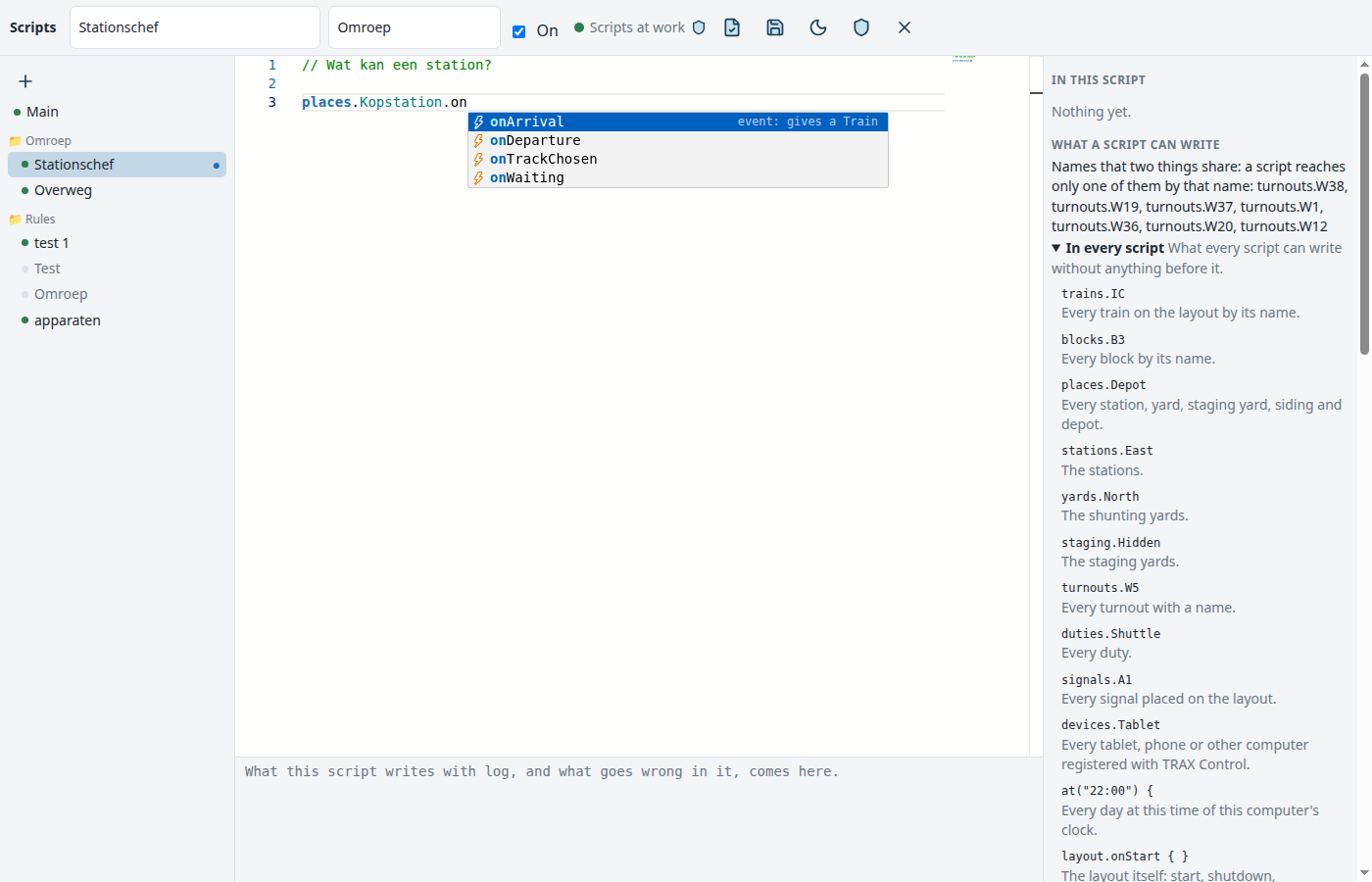
4. In the middle you write the code (10). The editor is Monaco, the editor of Visual Studio Code, with syntax highlighting for Groovy and code completion on the API: type stations. and you get the stations of your layout, type a dot after a station and you get its properties, methods and events. Typed closure parameters and variables are followed too. See Objects, collections and events.
5. “Check it” (5) compiles all scripts that are on together, without running anything, and checks the names the script uses. Errors and warnings are shown under the code with their line number (11), and in the code as a squiggle. See Testing and debugging.
6. “Keep it” (6), or Ctrl+S, keeps it, after a check: a script with a compile error is not kept, a warning does not stop it.
7. After keeping, the script process starts again, with all scripts that are on. Beside “Scripts at work” (4) you see its state, and by the shield whether the process is fenced in.
8. On the right (12) is the script's outline: classes, methods, variables and registered events, with their line number; a click jumps there. Under it (13) is what the API offers, with an explanation; a click inserts it.
9. With “What the scripts may do” (8) you give the scripts their rights, as for a device: see Decide what a device may do. All scripts together are one device with one set of rights: they share classes and variables, so rights per script would fence nothing in.
10. “Light or dark” (7) switches between a light and a dark editor. “Close the editor” (9) closes it; what has not been kept is asked about first.
Main
Main is always at the top, is always on and cannot be removed. Main runs first. Put your shared classes and global variables there, and the handlers for starting and stopping (layout.onStart, layout.onShutdown). See Keeping state.
The editor in a window of its own
The editor can also have a window of its own, on a second monitor for example: open scripts.html at TRAX Control's address, or scripts.html?script=main to start in Main at once.
How the scripts run together
- All scripts that are on are compiled together (one compilation unit) and run in one process with one shared binding. A class from one script is known in all the others.
- The order of running: first Main's top-level code, then that of the other scripts from top to bottom, and then the
layout.onStarthandlers. Top-level code that runs longer than ten seconds gives a warning: what takes long belongs in an event orevery(). - Every time you keep a script or switch one on or off, the script process starts again, and all state in memory is gone.
- If you rename something on the layout, TRAX Control changes that name in your source code too. It uses the syntax tree for that, so the same name in a string or a comment stays as it is.
10.2 Groovy for those who already program
Scripts are written in Groovy 5, a language on the Java VM. If you know Java, you know most of it already: Groovy runs Java code almost unchanged, but leaves a lot out (semicolons, brackets, return, getters) and adds closures and a compact syntax for lists and maps. If you know Python or JavaScript, it soon feels familiar too. This page lists what you need for scripts; everything beyond it is in the Groovy documentation.
Types: dynamic, or as you like
Groovy is dynamically typed: def leaves the type open, and it is only looked at while running. You may also simply write a type, as in Java.
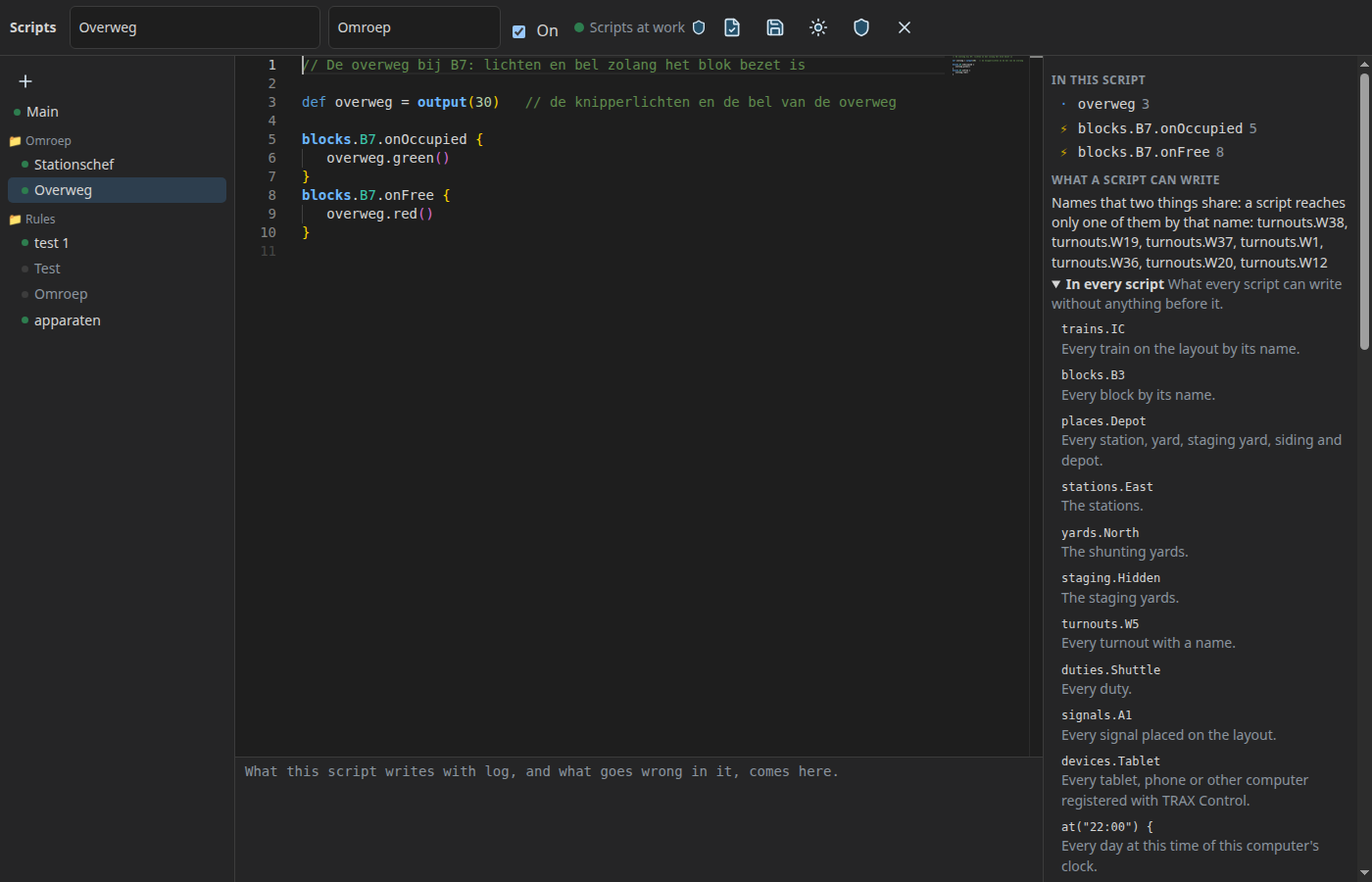
def crossing = output(30)     // the type follows from what goes in
int times = 0
Block track = blocks.B3Calling methods
The brackets round the arguments may go when there is at least one argument; without arguments they stay.
say("The train is coming")
say "The train is coming"
turnouts.W5.diverging()
Properties
You read a property without brackets: train.name, blocks.B3.occupied. Groovy turns that into the getter (getName(), isOccupied()); both ways of writing work.
Strings and interpolation
say "The ${train.name} is arriving on track ${track.name}"   // GString: ${…} is filled in
say 'Here ${train.name} stays as it is' // single quotes: a plain StringNull and the safe operators
def depot = places.find("Depot")   // gives null when there is no depot
log depot?.name                     // ?. : null instead of a NullPointerException
def count = counts[name] ?: 0       // ?: (Elvis): the value, or 0 when it is null/empty
Groovy truth: in an if, null, 0, an empty string, list or map is false, everything else true. So if (track) means “if there is a track”.
Lists and maps
def tracks = [blocks.B3, blocks.B4, blocks.B5]   // List
def first = tracks[0]
def counts = [:]                                 // empty LinkedHashMap
counts["IC"] = 3
counts.IC = 3                                    // the same
Closures
In scripts, closures are the event handlers:
stations.South.onArrival { Train train ->
   announce "The ${train.name} is arriving"
}
Read that as: call onArrival on station South, with this closure as its only argument. TRAX Control keeps the closure and calls it with the train, every time a train arrives.
And with collections:
tracks.each { Block track -> log track.name }
def free = tracks.findAll { !it.occupied }    // filter
def names = tracks.collect { it.name }        // map
def first = tracks.find { !it.occupied }      // the first that fits, or null
def busy = tracks.any { it.occupied }         // is there one?
Classes
You write classes as in Java, with less ceremony: fields without a modifier become properties with getters and setters, and public is the default.
class StationMaster {
   final Place station
   StationMaster(Place station) { this.station = station }
   void begin() { … }
}
Why and how you use classes in scripts is in Keeping state.
What cannot be done
A script cannot read or write files, cannot go onto the network and cannot start programs: the script process is fenced in against that. Java classes that do so (java.io.File, java.net.Socket, ProcessBuilder) you may name, but they give an error as soon as they try something. Native code is switched off as well.
Further reading
10.3 Objects, collections and events
A script does not speak of addresses but of the things on your layout, by the names you gave them. Every thing is an object with properties (its state), methods (what you do with it) and events (that you register a handler on).
Collections
Every thing on your layout is in a collection: a map from name to object, one per kind. They are available in every script as global variables:
| Collection | Holds | For example |
|---|---|---|
trains | every train on the layout | trains.IC |
blocks | every block | blocks.B3 |
places | every station, yard, staging yard, siding and depot | places.Depot |
stations | only the stations | stations.South |
yards | the shunting yards | yards.North |
staging | the staging yards | staging.Lower |
turnouts | every turnout with a name | turnouts.W5 |
signals | every signal on the layout | signals.A1 |
duties | every duty | duties.Shuttle |
devices | every tablet, phone or other computer that signed in | devices.Tablet |
TRAX Control keeps them up to date: a new train goes in, another name changes along. The type is Things<T>, a LinkedHashMap<String, T> with a few methods of its own (see the API reference).
Looking up by name
Put the name after a dot. If the name has a space in it or begins with a digit, put it between quotation marks, or use square brackets:
trains.IC
trains."IC 2"
blocks."12"
trains["IC"]
The name is not case-sensitive. A name nothing on your layout has gives a warning at “Check it” and an exception (IllegalArgumentException: there is no train "…") when the line runs: a collection deliberately gives no null for an unknown name.
Finding without an exception
If a name may be missing, use find(name): it gives the object or null. containsKey(name) gives only a boolean.
def depot = places.find("Depot")
if (depot) {
   log "The depot has ${depot.blocks.size()} tracks"
}

if (trains.containsKey("MuseumTrain")) {
   trains.MuseumTrain.startAgent(duties.Tour)
}
If you search by something other than the name, use values() with Groovy's collection methods: find gives the first element for which the closure gives true, or null.
def free = stations.South.blocks.find { !it.occupied }       // South's first free track
def depotTrain = trains.values().find { it.isIn(places.Depot) }
it is the implicit parameter of a closure with one parameter.
Iterating
each on the map gives per element the key (the name) and the value (the object):
trains.each { name, train ->
   log "${name} is in South: ${train.isIn(stations.South)}"
}
values() gives the objects as a Collection, and everything Groovy can do with collections works on it (findAll, collect, any, every, sort, groupBy, a plain for loop):
def occupied = blocks.values().findAll { it.occupied }          // every occupied block
log "${occupied.size()} blocks occupied: ${occupied*.name.join(', ')}"

for (Place station : stations.values()) {                        // a plain loop
   log "${station.name}: ${station.freeTracks.size()} tracks free"
}

boolean anyOccupied = stations.South.blocks.any { it.occupied }  // is one occupied?
def byName = trains.values().sort { it.name }                    // sorted by name
occupied*.name is the spread operator: the property name of every element, as a list (the same as occupied.collect { it.name }).
Read-only
The collections are read-only. put, remove, clear and the mutations through keySet(), values() and entrySet() (through an iterator too) throw an UnsupportedOperationException; the collection stays as it was.
So no accidents can happen: trains.remove("IC") takes no train off the layout, nor does it confuse the other scripts. You change the layout only through the objects' methods (throwing a turnout, starting an agent, setting a route), and those go through the protection and the scripts' rights. Making, deleting or placing trains, and adding blocks or turnouts, is not in the API; you do that in TRAX Control itself.
If you want a list you can change, make a copy: def myTrains = trains.values().toList().
An object belongs to the thing, not to the name (internally to its id): if you give a train another name, it stays the same object, and TRAX Control changes the name in your source code as well.
Properties
You read a property without brackets. They give the state of now.
blocks.B3.occupied            // boolean, asked live
stations.South.freeTracks     // List<Block>, asked live
trains.IC.name                // String
clock.time                    // LocalTime on the model clock
Methods
A method does something or asks something, with brackets:
turnouts.W5.diverging()                   // command: set the turnout diverging
trains.IC.startAgent(duties.Shuttle)      // command: start the agent on this duty
route(blocks.B1, blocks.B4).set()         // command: set the first route from B1 to B4
trains.IC.isIn(stations.South)            // query: boolean
A command goes through the protection and depends on the scripts' rights. If it is refused (a locked turnout, no right, no free route), the method throws an exception with TRAX Control's reason. Catch it with try/catch if you want to react to it; otherwise it is in the log.
Events
You register an event with a method that begins with on and is given a closure as the handler. What the event passes are the closure's parameters.
blocks.B3.onEntered { Train train ->
   log "${train.name} enters B3"
}The parameter type is checked. On registering, the host looks whether the closure can take what the event gives: a station's onArrival gives a Train, a train's onArrival gives a Place. If it does not fit, the registration throws an exception, for example “onArrival gives a Train, not a Block”: it is in the log at the start, and the rest of that script no longer runs (the other scripts do). An event without an argument (onOccupied, onStart) is written without an arrow. Pick an event from the editor's completion and the signature is right at once.
Every call on a thread of its own. Every handler call runs on a (virtual) thread of its own. So a handler may block, with sleep(5000) for example, without other events waiting. It also means that handlers can run at the same time; see Keeping state for what that asks of shared variables.
A handler that runs wild, more than twenty calls in ten seconds, is switched off; see Testing and debugging.
Which event do you choose?
block.onOccupied/onFreecome from the detector: occupied by whatever, a wagon TRAX Control does not know too.block.onEntered/onLeftcome from TRAX Control's train tracking and pass the train; only for trains that have been put on the layout. A level crossing wantsonOccupied, an announcementonEnteredoronArrival.place.onArrivalcomes when a train enters the station;onDepartureonly when it is fully out of it.at("22:00")runs on the computer's clock;clock.at("22:00")on the model clock, which can run faster or stand still. For the timetable and day and night on the layout you want the model clock.every(60)is a timer. Only use it when there is no event for what you want to know.
Events of the layout itself
layout has the events of the layout as a whole: onStart (all scripts are loaded), onShutdown (the scripts stop; you have a few seconds), the routes (onRouteSet, onRouteReady, onRouteDisturbed, onRouteReleased), the command station (onStationConnected, onStationLost), the track power (onPowerOn, onPowerOff, onEmergencyStop) and the devices (onDeviceCame, onDeviceWent, onDeviceAsks).
Event objects
If an event passes more than one value, you get a small object:
stations.South.onWaiting { Waiting w ->
   log "${w.train.name} has waited ${w.seconds} s: ${w.reason}"
}
trains.IC.onDelayed { Delay d ->
   announce "Train ${d.service} is ${d.minutes} minutes late"
}
So there are Waiting, Delay, NotThere, TrackChoice and RouteEvent; their properties are in the API reference.
A method at a duty's stop
If you want to do something at a fixed point of a duty, you need not look up an event. In the duty's window, at a stop, you choose a moment and a method with “+” in the column “Events” (level “Expert”):
start: the agent sets off for the stop;arrived: it is there;finished: it leaves it again;waiting: it waits for its way there, every five seconds.
The method can be in a script, static in a class, or on an object Main shares. It takes a DutyStep, or nothing. A double click on the method opens it in the script editor.
The “+” opens one window, with the stop in its head (1). On the left are the stop's events (2): it sets off for it, arrives, leaves it again, waits for its way there. Choose one (3). On the right are the methods that fit (4): those that take a DutyStep, or nothing. Or choose “Or write a new one” (5): give a name, choose the script and write.
 12345
- 1 The head: the stop
- 2 The stop's events
- 3 The chosen event
- 4 The methods that fit
- 5 “Or write a new one”: name, script, write
TRAX Control then puts void name(DutyStep s) { log … } in that script, links the event and opens the script editor on that line.
// in Main
chef = new StationMaster()

class StationMaster {
   void arrival(DutyStep s) {
      Trax.layout.announce "The ${s.train.name} is arriving"
   }
}
// in the duty, at stop 2: arrived → chef.arrival()
What a DutyStep passes (the train, the stop's number, the moment) is in the API reference.
Global functions
Without an object before it, every script has:
say "…"(an alert on every screen),announce "…"(an announcement: shown and spoken),log "…"(the script's log;printlndoes the same);input(n): a feedback address, withonOn,onOffandon;output(n): an accessory address, withgreen()andred();flag("name"): a flag rules read as well:on(),off(),isOn();route(from, to): the first route between two blocks, withset();every(s) { },at("hh:mm") { },between("22:00", "06:00"): time;power(true),stopAll(): track power and emergency stop.
In a class of your own these globals are not visible: there you write Trax.trains.IC, Trax.layout.say "…", Trax.log "…". See Keeping state.
10.4 Keeping state: scope, Main and your own classes
Where the script editor; the script Main.
Events tell what happens now. If you want to know something about what happened before (how often a train passed, whether the crossing is already closed, which train left last), your script keeps that state itself. This page is about where that state lives, for how long, and what happens when handlers run at the same time.
Three scopes
Local in a closure. Exists only during that one handler call.
blocks.B3.onEntered { Train train ->
   def text = "${train.name} in B3"   // local: gone after this call
   log text
}
Script-local, with def or a type. A variable at the top of a script lives as long as the scripts run. The closures of that script see it (they capture it); other scripts do not.
def crossing = output(30)
blocks.B7.onOccupied { crossing.green() }
blocks.B7.onFree { crossing.red() }
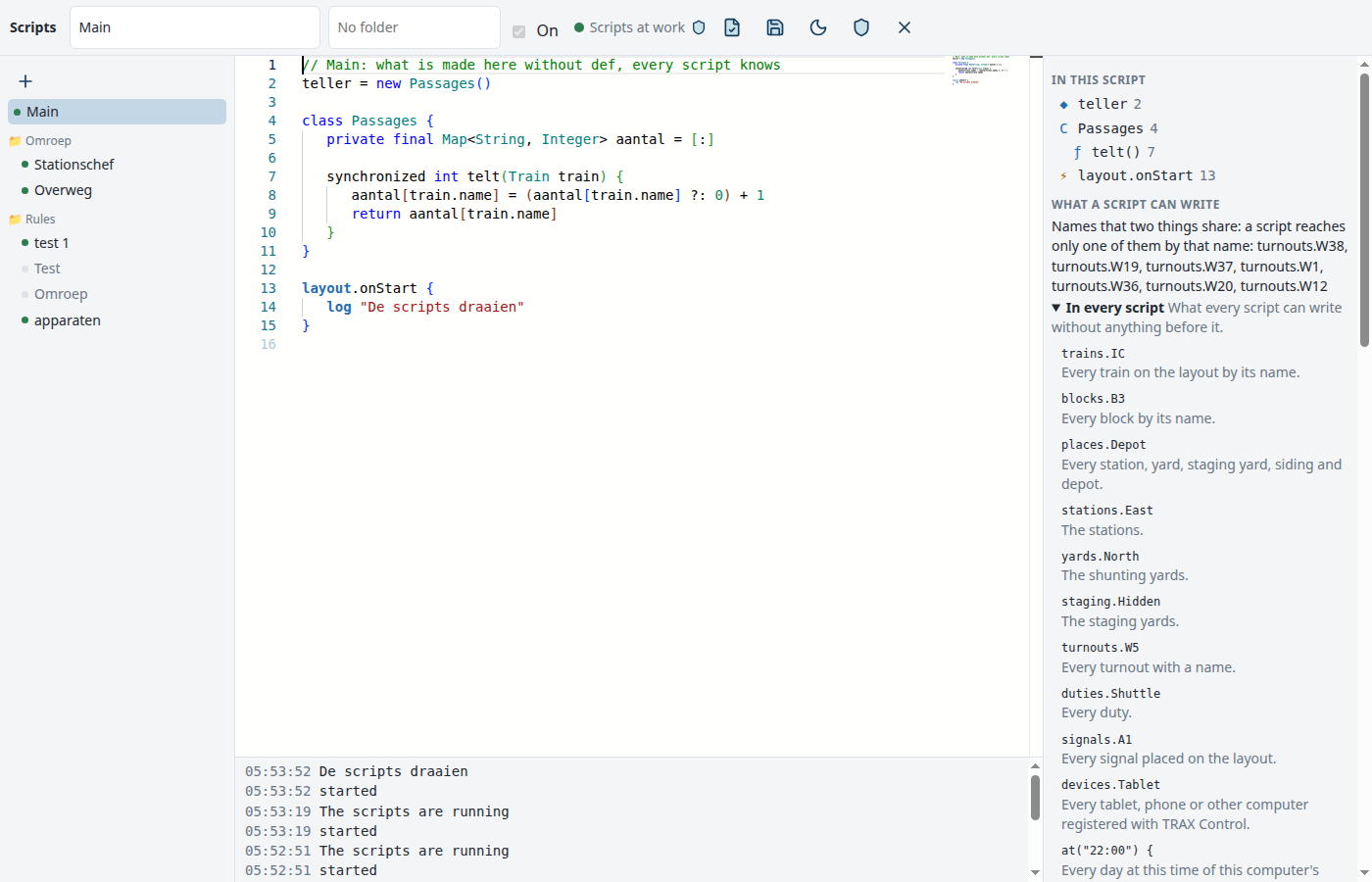
Shared, without def and without a type. An assignment without a declaration goes into the binding: one shared namespace for all scripts. Make shared variables in Main, because Main runs first.
// Main
counter = new Passages()Lifetime: only in memory
All state lives in the memory of the script process. If you keep a script, switch one on or off, or start TRAX Control again, the process starts again: variables begin empty, and flags (flag("…")) are off after a restart of TRAX Control.
So design for your state being gone: read the current state of the layout in layout.onStart, rather than trusting what you kept before.
layout.onStart {
   if (blocks.B7.occupied) {
      crossing.green()     // something was already there when the scripts began
   }
}
Concurrency: handlers run at the same time
Every handler call runs on a thread of its own. If two trains arrive at the same time, two calls run at the same time, and if they touch the same variable you can get a race condition.
Two solutions:
- Put the shared state in a class and make the methods that read and change it
synchronized: then one thread at a time goes through. - Or use thread-safe types from Java:
java.util.concurrent.atomic.AtomicInteger,java.util.concurrent.ConcurrentHashMap.
Script-local variables you only fill when starting and then only read (like def crossing = output(30)) are no problem.
Our advice: object-oriented
For a handful of lines on one event you need no class. If it grows, or you want the same for several stations, blocks or trains, write classes. A layout already consists of things with state and behaviour of their own, and that maps one to one onto objects: a StationMaster per station, a LevelCrossing per crossing, one Passages counter for the layout.
- Encapsulation. A crossing's state is in the
LevelCrossingobject, not as loose variables spread over a script. - Reuse. Three stations are three instances of the same class.
- Thread safety in one place. The shared state is in the object, and
synchronizedon its methods protects it.
// Main
counter = new Passages()

class Passages {
   private final Map<String, Integer> times = [:]

   synchronized int count(Train train) {
      times[train.name] = (times[train.name] ?: 0) + 1
      return times[train.name]
   }
}
// Another script
blocks.B3.onEntered { Train train ->
int n = counter.count(train)
if (n % 10 == 0) {
say "${train.name} has now passed ${n} times"
}
}A class that registers events itself
An object can register its own handlers, in a method you call after it has been made. Within a class the script's globals are not visible: use Trax. (Trax.trains, Trax.stations, Trax.layout, Trax.clock, Trax.log).
class StationMaster {
   final Place station
   final String name

   StationMaster(Place station, String name) {
      this.station = station
      this.name = name
   }

   void begin() {
      station.onArrival { Train train ->
         Trax.layout.announce "Station ${name}: the ${train.name} is arriving"
      }
      station.onDeparture { Train train ->
         Trax.log "${train.name} left ${name}"
      }
   }
}

new StationMaster(stations.South, "South").begin()
new StationMaster(stations.North, "North").begin()
All scripts that are on are compiled together. So a class from Main is known in every script, and you can put the class in one script and make the instances in another.
Sharing state with rules: flags
A rule cannot reach a script's variables. If a rule must know what a script keeps, use a flag: flag("night").on(). A rule can use a flag as a condition, and the panel “Rules” shows which flags are on.
10.5 Testing and debugging
Where the script editor; the panel “Scripts”.
There are three kinds of errors: a compile error (the code is not valid Groovy), a warning (a name nothing on your layout has) and a runtime error (an exception while the script runs). Each has a place of its own where you see it.
Compile errors: “Check it”
“Check it” (1) compiles and puts the errors under the script (2), with their line number; the spot gets a red squiggle (3). A script with a compile error is not kept.
 1234
- 1 “Check it”
- 2 The problems, with the line number
- 3 The error in the script
- 4 The script's log
The parser reports the spot where it gets stuck, and that is sometimes further on than the real error: here the closing quotation mark is missing on line 4, and the lexer only trips over the end of the line. So look one line back as well.
Because all scripts are compiled together, “Check it” also says how many errors the other scripts have: the scripts only run when they all compile.
Warnings: names that are not there
Besides compiling, “Check it” walks the script's syntax tree and looks up every reference to a collection (stations.South, trains."IC 2"). If that name does not exist on your layout, you get a warning (3): “there is no place "Kopstaton" on this layout”. A warning does not stop keeping (perhaps you are still to make that station), but while running that line gives an exception.
 1234
- 1 “Check it”
- 2 The problems, with the line number
- 3 The warning in the script
- 4 The script's log
Runtime errors: the log
An exception while running (a NullPointerException, a MissingPropertyException from a typo, a refused command, a wrong parameter type at an event) is caught by the host:
- in a handler only that one call stops; the handler stays registered, the other handlers and scripts carry on, and TRAX Control keeps running;
- in the script's own lines (when starting) the rest of that script stops; the other scripts start as usual;
- the error is in the script's log (4), under the editor, with its line number, and in the panel “Scripts” under “What the scripts wrote”, with the script's name before it.
If you want to react to an error yourself, a command that is refused for example, catch it:
try {
   turnouts.W5.diverging()
} catch (Exception refused) {
   log "W5 not set: ${refused.message}"
}
Logging
There is no debugger with breakpoints; you debug with logging. log writes a line in the script's log; println does the same.
stations.South.onWaiting { Waiting w ->
   log "waiting: ${w.train.name}, ${w.seconds} s, ${w.reason}"
   if (w.seconds < 60) {
      return
   }
   Block track = stations.South.freeTracks.find()
   log "free track: ${track?.name}"
   ...
}
track?.name is null-safe navigation: null instead of a NullPointerException when track itself is null.
Tips:
- Build incrementally. First register only the handler with a
login it and see whether it comes. Then add the logic. - Log an event's arguments. Then you see at once whether you are on the right event and what it passes.
sayas a temporary print on the screen, when you are standing at the layout instead of at the editor.- Read generated code. If a rule in the panel “Rules” does what you want, show it as a script (“Show it as a script”).
Testing without hardware
With the command station “Loopback” TRAX Control runs without hardware: put the trains on the layout and let their agents run, then TRAX Control simulates the detectors and your scripts get the same events as on a real layout. See Test your plan before you build.
Runaway protection
If a handler is called more than twenty times in ten seconds, the host switches it off and says so in the log. Usually it is a feedback loop: the handler itself causes the event it waits for, for example a turnout that is thrown back in onReported. Correct the code and keep it; then everything starts again.
State of the script process
At the top of the editor and the panel is the state of the script process:
- Scripts at work: everything runs.
- Starting: the script program is starting, after keeping or after a restart of TRAX Control.
- Stopped, starting again: the process stopped unexpectedly and starts again after a growing wait (2, 4, 8 … s).
- Stopped: it stopped five times within five minutes and is no longer started by itself. Keep or switch a script to try again.
- From Pro: this edition runs no scripts; they stay kept.
The log
Every log line of a script, and every order a script gives TRAX Control, also goes into TRAX Control's log. If you send a report to support, it goes along; see Send a report to support.
10.6 Example scripts
Every example begins with the goal, then the code, and then the design choices: which event, which method, and why. Replace the names (stations.South, blocks.B7, address 30) with those of your layout. All examples were compiled in the script host, and some were also run on a test layout.
An announcement on arrival
What do we want? When a train arrives at station South, every screen should announce it: “The IC is arriving at station South”.
stations.South.onArrival { Train train ->
   announce "The ${train.name} is arriving at station South"
}
Why like this? We need the train, so we register on the station's event: Place.onArrival passes a Train. (Train.onArrival would do the reverse: per train, with the station as its argument.) announce shows and speaks; say only shows. Double quotes make it a GString, so ${train.name} is filled in.
A level crossing that flashes while something is on it
What do we want? Block B7 lies over the level crossing. As long as something is in B7, the flashing lights and the bell must be on (they hang on accessory address 30).
def crossing = output(30)   // the crossing's flashing lights and bell

blocks.B7.onOccupied {
   crossing.green()
}
blocks.B7.onFree {
   crossing.red()
}
Why like this? onOccupied and onFree come straight from the detector: they fire for everything that runs, rolling stock TRAX Control does not track too. That is what you want at a crossing; onEntered fires only for tracked trains. The Output object is put once in a script-local variable that both closures capture: the address is in one place, and because the variable is only read after starting, it is thread-safe.
If the lights should already be on when the train approaches, register on the block before it as well and keep track in a class with synchronized methods of which blocks are occupied: the crossing may only open when both are free. See Keeping state.
A push button on the layout that sets a route
What do we want? At the station there is a push button on feedback address 12. When you press it, the route from B1 to B4 should be set.
input(12).onOn {
   route(blocks.B1, blocks.B4).set()
}
Why like this? A push button is not a block, so we work on the raw feedback address: input(12) gives an Input, with onOn for the edge from off to on. route(from, to) asks the route finder for the first route that keeps the direction of travel; set() sets it through the protection. If that does not work (another route, an occupied block), set() throws an exception with the reason, which goes into the log.
Street lamps on the model clock
What do we want? At half past seven in the evening on the model clock the street lamps go on (address 40), at a quarter to seven in the morning off.
def streetLamps = output(40)

clock.at("19:30") {
   streetLamps.green()
}
clock.at("06:45") {
   streetLamps.red()
}
layout.onStart {
   if (clock.between("19:30", "06:45")) {
      streetLamps.green()
   } else {
      streetLamps.red()
   }
}
Why like this? clock.at is a timer on the model clock: if it runs four times as fast, the lamps switch four times as often too, in step with the timetable; at without clock. follows the computer's clock. A timer only fires at the moment the time passes, so after a (re)start it knows nothing of the current state. That is why layout.onStart initialises the lamps with clock.between: the state is derived rather than remembered.
Another track when a train waits too long
What do we want? If a train run by an agent has waited a minute for station South, it should go to a track that is free, and the passengers should hear it.
stations.South.onWaiting { Waiting w ->
   if (w.seconds < 60) {
      return
   }
   Block track = stations.South.freeTracks.find()   // the first free track, or null
   if (track) {
      w.train.arriveAt(track)
      announce "The ${w.train.name} is arriving on track ${track.name}"
   }
}
Why like this? Place.onWaiting fires as soon as an agent starts waiting and then every half minute, with a Waiting object. The guard clause (if (…) return) leaves short waits alone. freeTracks is a live query; find() without a closure gives the first element that is Groovy-true, here the first free track, or null. arriveAt overrides the agent's choice of track for this stop, and the agent tries at once. The script only chooses the goal: the route there is set by TRAX Control, through the protection.
Announcing a delay
What do we want? If a train runs five minutes or more behind the timetable, we announce it.
trains.each { name, train ->
   train.onDelayed { Delay d ->
      if (d.minutes >= 5) {
         announce "Train ${d.service} is about ${d.minutes} minutes late"
      }
   }
}
Why like this? onDelayed is an event of Train, so we register it per train by iterating over the collection. That is a snapshot: a train added later only gets a handler after a restart of the scripts. The event fires at the threshold and every time the delay grows by a few minutes; d.service is the service number, such as “IC 2341”.
Starting and stopping a duty on time
What do we want? The shuttle train runs its shuttle duty from seven in the morning to eleven at night on the model clock.
clock.at("07:00") {
   trains.Shuttle.startAgent(duties.ShuttleDuty)
}
clock.at("23:00") {
   trains.Shuttle.stopAgent()
}
Why like this? Two timers on the model clock. startAgent does what the robot on the train's card does; if it is refused (no room for another agent in your edition, the train is not on the layout), it throws an exception with the reason. For service numbers, delays and running round there is the timetable itself; this is the minimal version.
A turnout lantern
What do we want? Turnout W5 has a lantern on address 41, which must show how the turnout lies, also when somebody throws it by hand.
def lantern = output(41)

turnouts.W5.onReported { String position ->
   if (position == "diverging") {
      lantern.green()
   } else {
      lantern.red()
   }
}
Why like this? onReported fires on the command station's feedback, whoever threw the turnout: a click, a rule, a script or a hand at the layout. So we react to the reported state, not to the command: the lantern is right even when a command did not arrive.
Reporting who is there
What do we want? When the dispatcher's tablet comes or goes, we say so on every screen. When an unknown device asks for access, as well.
devices.Tablet.onCame {
   say "The dispatcher's tablet is here"
}
devices.Tablet.onWent {
   say "The dispatcher's tablet has gone"
}
layout.onDeviceAsks { Device device ->
   say "${device.name} asks for access: look at Devices"
}
Why like this? A known device is in the collection devices; a new device not yet, so for that there is the event on layout, which passes the Device. onWent is debounced: it only fires when the device has had no page of TRAX Control open for a while, so a tablet that reloads is not “gone” for a moment.
When the command station drops out
What do we want? If the connection with the command station drops, everybody should hear it and we want to see in the log when.
layout.onStationLost {
   log "The command station is gone"
   announce "Attention: the connection with the command station is lost"
}
layout.onStationConnected {
   log "The command station is back"
}
Why like this? Events on layout without an argument, so closures without parameters. The log lines go into TRAX Control's log too, with the time: handy for reconstructing a fault afterwards.
Counting how often a train passes
What do we want? Every tenth time a train enters B3, we say how often it has passed.
This example has shared, changing state and with it a race condition if you write it naively. The worked-out version, with a class in Main and a synchronized method, is in Keeping state, as is a StationMaster class that registers its events itself.